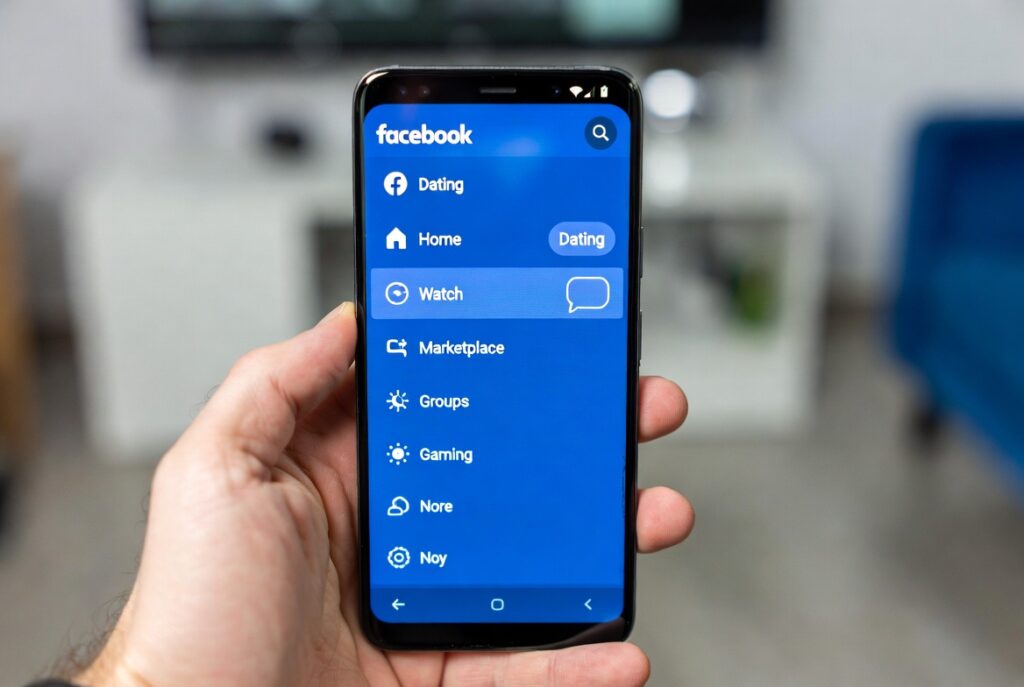

If you opened Facebook expecting to see the Dating tab and suddenly it is missing from your menu, you are not alone.
Many users across the U.S., U.K., Canada, Australia, and other supported regions have reported the same issue. Sometimes the feature disappears after an app update. Other times, it never shows up at all, even when friends already have access.
The good news is that this problem is usually fixable.
In this complete guide, you will learn what to do if Facebook Dating is missing from your menu, why it happens, and the exact steps to bring it back.
Recent troubleshooting reports and user discussions show that the most common reasons include app version issues, location settings, navigation bar preferences, account eligibility, or temporary feature rollouts.
Why Facebook Dating Disappears From the Menu
Before fixing the issue, it helps to understand why the Dating tab may be missing.
Here are the most common reasons:
- The Facebook app is outdated
- Your location permissions are disabled
- Dating is not available in your region
- Your account does not meet age requirements
- The navigation menu is set to auto-hide the icon
- Temporary bugs after app updates
- Cache corruption on Android
- Account restrictions or temporary blocks
- Ongoing feature rollout delays
Sometimes the feature is still active, but Facebook moves it under See More or hides it from the shortcut bar.
Step 1 – Check If Facebook Dating Is Available in Your Country
The first thing to verify is regional availability.
Facebook Dating is only available in selected countries and may roll out gradually.
If you recently traveled or changed your device location settings, this can affect visibility.
Countries commonly supported include:
- United States
- United Kingdom
- Canada
- Australia
- New Zealand
- Several European and Latin American countries
If your region is unsupported, the menu option may not appear at all.
Step 2 – Confirm You Meet the Eligibility Requirements
Facebook Dating is generally limited to users 18 years and older.
Check that your Facebook birth date is correct.
Go to:
Menu → Settings & Privacy → Settings → Personal Information
If your age is below 18 or your birth date is incorrect, the Dating feature may stay hidden.
Quick eligibility checklist
| Requirement | Status to Check |
| Age | 18+ |
| Personal account | Required |
| Latest app version | Recommended |
| Supported country | Required |
| Location access | Enabled |
Step 3 – Update the Facebook App
One of the best fixes is updating the app.
Older versions may not display newer features correctly.
On iPhone
- Open App Store
- Search Facebook
- Tap Update
On Android
- Open Google Play Store
- Search Facebook
- Tap Update
Users frequently recover the Dating tab immediately after updating.
This is one of the top solutions in most review and troubleshooting guides.
Step 4 – Search for Dating Manually
Sometimes the icon is hidden from the main menu but still accessible.
Use the search bar inside Facebook and type:
Facebook Dating
Many users can still open the feature this way.
This is especially useful after interface updates.
Step 5 – Check Navigation Bar Settings
This is one of the most overlooked fixes.
Facebook often sets shortcuts to Auto, meaning icons appear only when frequently used.
Some users reported the Dating tab disappeared from the bottom bar but was still recoverable by changing shortcut settings.
How to fix it
Go to:
Menu → Settings & Privacy → Settings → Navigation Bar
Then change Dating from:
Auto → Pin
This keeps the icon visible.
This solution has worked for many users after recent UI updates.
Step 6 – Enable Location Permissions
Facebook Dating relies heavily on location access.
If location is turned off, the feature may disappear.
On Android
- Long press Facebook app
- Tap App Info
- Open Permissions
- Enable Location
On iPhone
- Settings
- Location
- Choose While Using App
This fix is frequently recommended in top troubleshooting resources.
Step 7 – Clear Cache or Reinstall the App
Corrupted cache files often cause missing menu features.
Android
- Long press app
- App Info
- Storage
- Clear Cache
iPhone
Use Offload App or reinstall.
Many review-based troubleshooting comparisons rank this among the top fixes.
Step 8 – Log Out and Log Back In
This refreshes account-level features.
Steps:
- Tap Menu
- Scroll down
- Log out
- Sign back in
This often restores hidden tabs caused by sync issues.
Step 9 – Check for Account Restrictions
If your account recently received a temporary restriction, some features may disappear.
For example:
- Community standard violations
- Suspicious login activity
- Rapid account actions
Some users have reported losing access after temporary account flags.
Pros and Cons of Common Fixes
| Fix Method | Pros | Cons |
| Update app | Fast, easy | May require restart |
| Enable location | Highly effective | Privacy permissions needed |
| Clear cache | Fixes corruption | Android-focused |
| Reinstall app | Strong reset | Time-consuming |
| Pin shortcut | Best for UI issues | Not available in all versions |
Best Fix Based on User Reviews
Based on troubleshooting guides, community feedback, and recent reviews, the best solution is usually this order:
- Update app
- Enable location
- Search Dating manually
- Pin shortcut
- Reinstall app
This comparison-style approach tends to solve the issue fastest.
What If Facebook Dating Still Does Not Show?
If none of the above works, the issue may be related to:
- phased feature rollout
- server-side bug
- regional update delay
- account-specific rollout testing
Some users reported the icon returning automatically after several days.
In this case, the best alternative is to:
- keep app updated
- monitor notifications
- check weekly after updates
Final Step-by-Step Quick Fix Guide
Best troubleshooting checklist
- Update Facebook
- Turn on location
- Verify age 18+
- Search Dating in app
- Pin shortcut
- Clear cache
- Reinstall app
- Log out/in
- Wait for server refresh
Conclusion
If Facebook Dating is missing from your menu, the issue is usually caused by settings, app updates, or account eligibility.
The fastest fixes are:
- updating the app
- enabling location
- changing menu shortcut settings
- clearing cache
For most users, one of these restores access quickly.
If the feature is still unavailable, it may be a temporary rollout issue rather than a device problem.
FAQ Section
Why is Facebook Dating missing from my menu?
Usually due to app version issues, location settings, account eligibility, or navigation bar preferences.
Can I use Facebook Dating on desktop?
No. It is designed primarily for the mobile app.
Does reinstalling Facebook help?
Yes, especially when the issue is caused by corrupted app data.
Why do my friends have it but I do not?
Feature rollouts may occur in stages by account and region.
Can location settings hide the feature?
Yes. Disabled location access is one of the most common causes.
How long does it take to come back?
Sometimes instantly after fixes, other times several days if it is a rollout issue.